First tasks for sandboxed agents
Updated September 25, 2026
The first task is a short Markdown checklist based on a brief in the prompt. This provides a small output for inspection.
The agent runs in a cloud sandbox without access to files on the local computer. Required material comes from the prompt or explicitly connected workspace tools. The live coding agents are Claude Code, Codex CLI, opencode, Cursor CLI, Antigravity and Qwen Code.
Capture limit: the screenshots show a workspace and a board. No codespace is running in this seeded workspace. They do not show a launched agent, an agent response or completed work. The launch instructions below follow the app source.
Before you start: what Free permits
Free includes notes, projects, MCP servers for files and boards, 1 GB of storage (100 MB searchable) and 2,500 credits once. The plan comparison lists codespaces on Free at a metered runtime rate. Agent AI use has its own cost; it is not included unlimited with a running machine.
Check Pricing and plans, your current credit balance, the launch estimate and the agent's AI wallet before starting. The wallet is a separate prepaid balance for coding-agent use. The plan catalog does not establish how many minutes or agent responses your remaining credits will buy.
1. Write a task you can check
Use a note or board card to state the input, output and stopping point. For example:
Create checklist.md in this codespace from the brief below.
Use five checkboxes. Include only actions stated in the brief.
When done, show me the file path and its contents. Stop for review.

Brief: Read the source PDF. Check the method's assumptions.
Write a short summary. Record open questions. Review the summary.
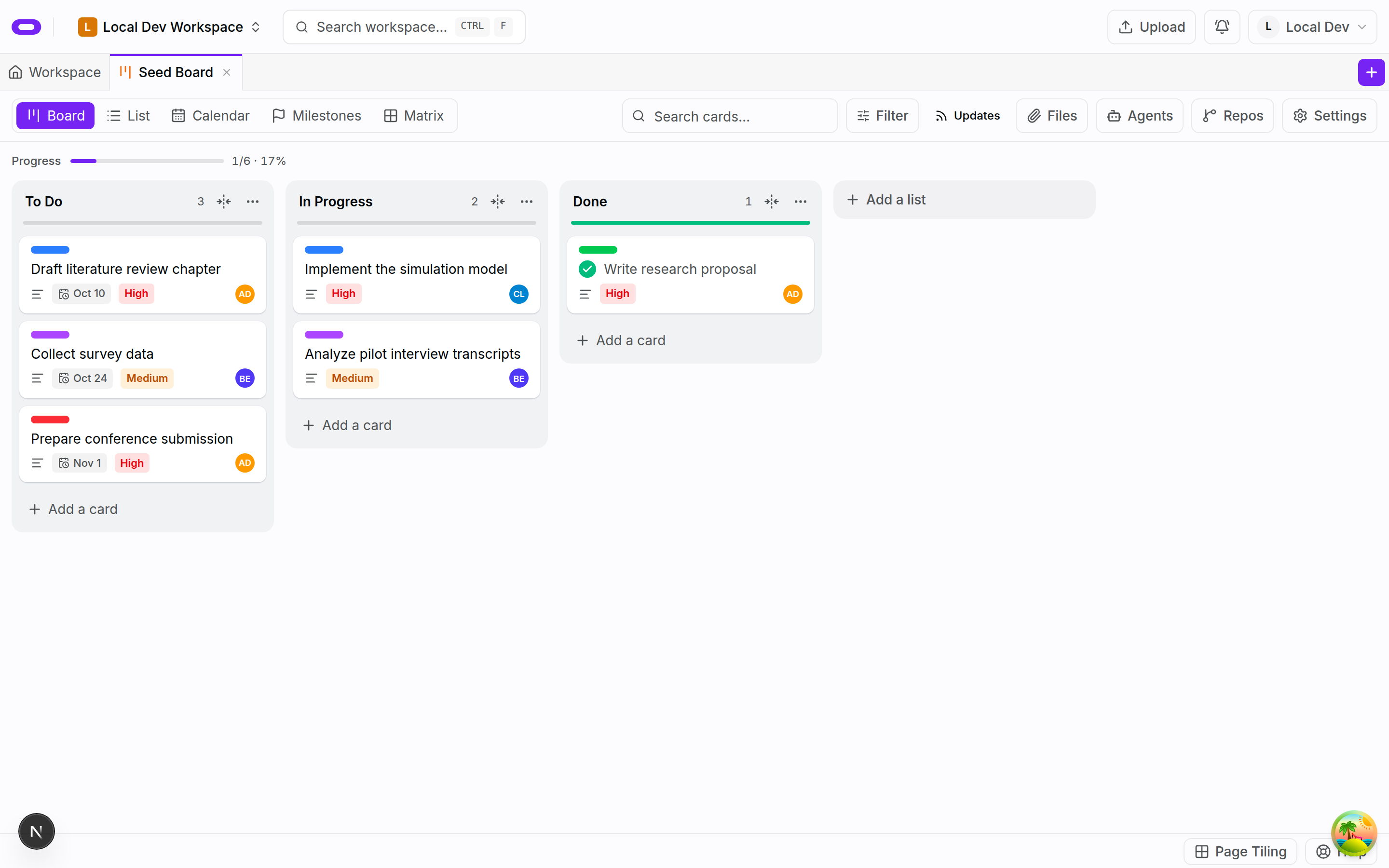
This shows a place to keep the task. No screenshot for this step yet: saving this example brief. The existing cards are seeded examples, not agent results.
2. Open the codespace launcher
Open the workspace's codespaces area and choose Launch Codespace. Select Codespaces in the launch flow. Paste your brief into First prompt (optional). The app uses that prompt to open the new session in Chat; an empty prompt opens the editor instead.
No screenshot for this step yet.
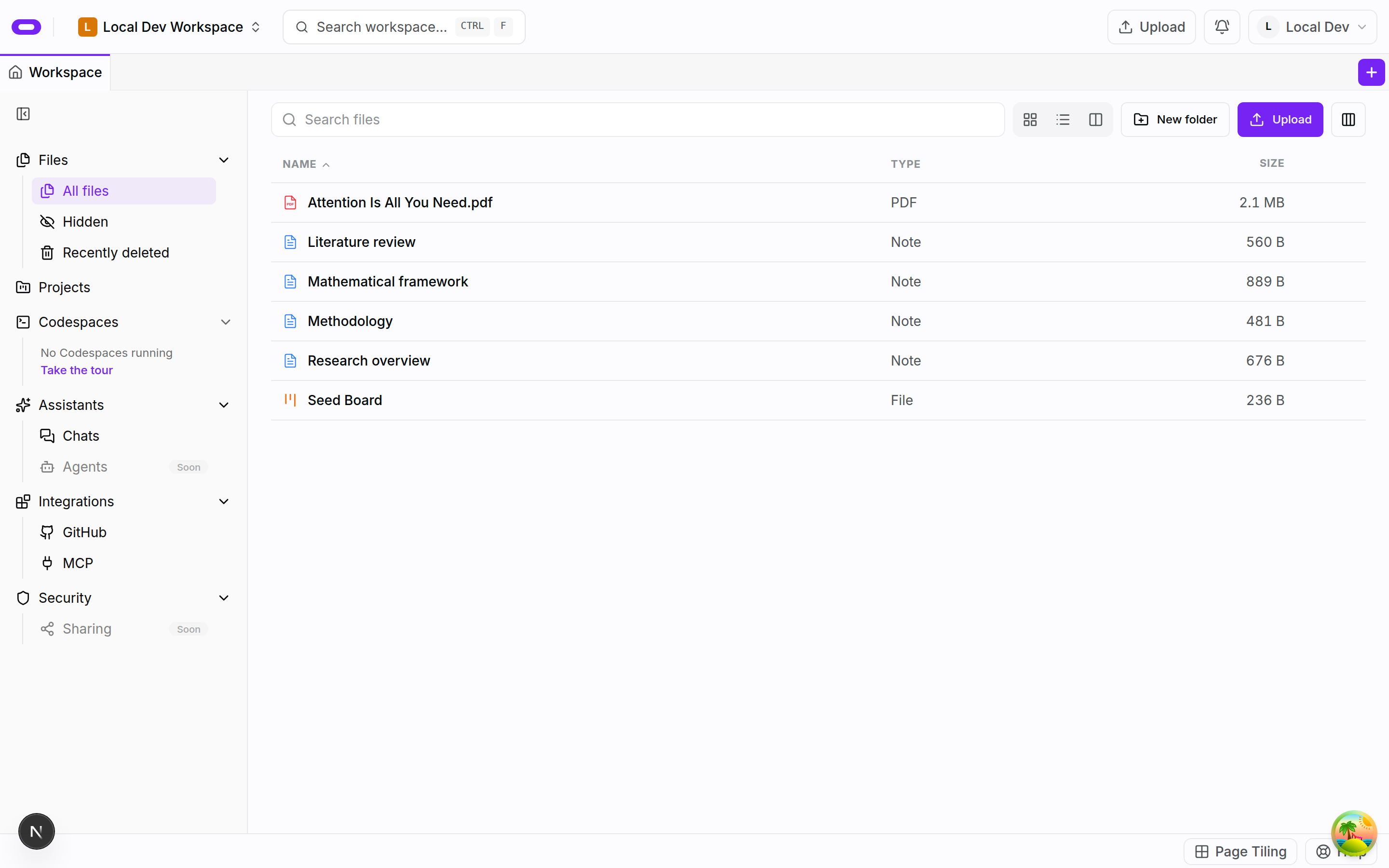
This is the starting workspace. It does not show the launch wizard or a running sandbox.
3. Choose the agent and its access
Choose Claude Code, Codex CLI, opencode, Cursor CLI or Qwen Code from the coding-agent choices. Antigravity is not in that list: install it yourself and run it from the terminal. Complete the authentication and budget steps offered for that agent. For this pasted-brief task, the prompt contains the input; do not assume the agent can also read your workspace notes.
If you choose a task that needs workspace files, attach that workspace's server under MCP tools. Without it, the agent cannot read or write workspace files through that connection. See connecting Oyren MCP servers for the connection details. Repository selection is separate from workspace-file access.
No screenshot for this step yet.
4. Review the budget and launch
Choose a machine size and duration in the server step. Read the quoted runtime cost and any blocking messages. For an Oyren-paid agent, fund the prepaid AI wallet shown in the flow; its balance is shared across containers and carries over between launches. Confirm the launch only after checking both runtime and AI spending.
No screenshot for this step yet.
5. Inspect the result and finish the session
When the session is ready, read the agent's response in Chat. Ask it to show checklist.md if it has not done so. Open the file in the codespace editor and compare every checkbox with your pasted brief. If a file is missing or the content is wrong, ask for a correction and check again. A confident response alone is not a completed task.
Keep the result you need before ending the session. Use the codespace's stop control when you finish, and read its duration and early-stop terms rather than assuming unused time is refunded. Your first outcome is complete when you have inspected the saved checklist and confirmed it matches the brief.
No screenshot for this step yet.
Keep later assignments on the shared board, or prepare their source material with PDF to note to board.