Scanned PDF conversion to editable notes
Updated September 24, 2026
This walkthrough covers PDFs whose words are part of a page image. The intended result is an editable note for comparison with the original.
Capture limit: our current PDF screenshot is a text-based document with ocr_scanned=false. No OCR run or finished OCR note was captured. The instructions for uncaptured controls follow the app source; these screenshots do not demonstrate extraction quality or a successful conversion.
Before you start: what Free permits
Free includes 1 GB of storage (100 MB searchable), the note editor and calculator, and 2,500 credits once. OCR is available on Free and is billed per page. It is not an unlimited free scan allowance. Check Pricing and plans, your remaining storage and credits, and the estimate shown before you confirm a conversion.
1. Bring in a scanned PDF
Use Upload in the workspace file list and select your PDF. Open the uploaded file and inspect a page. For this walkthrough, use a document whose text is in the scanned image. Do not assume that the example below is a scan.
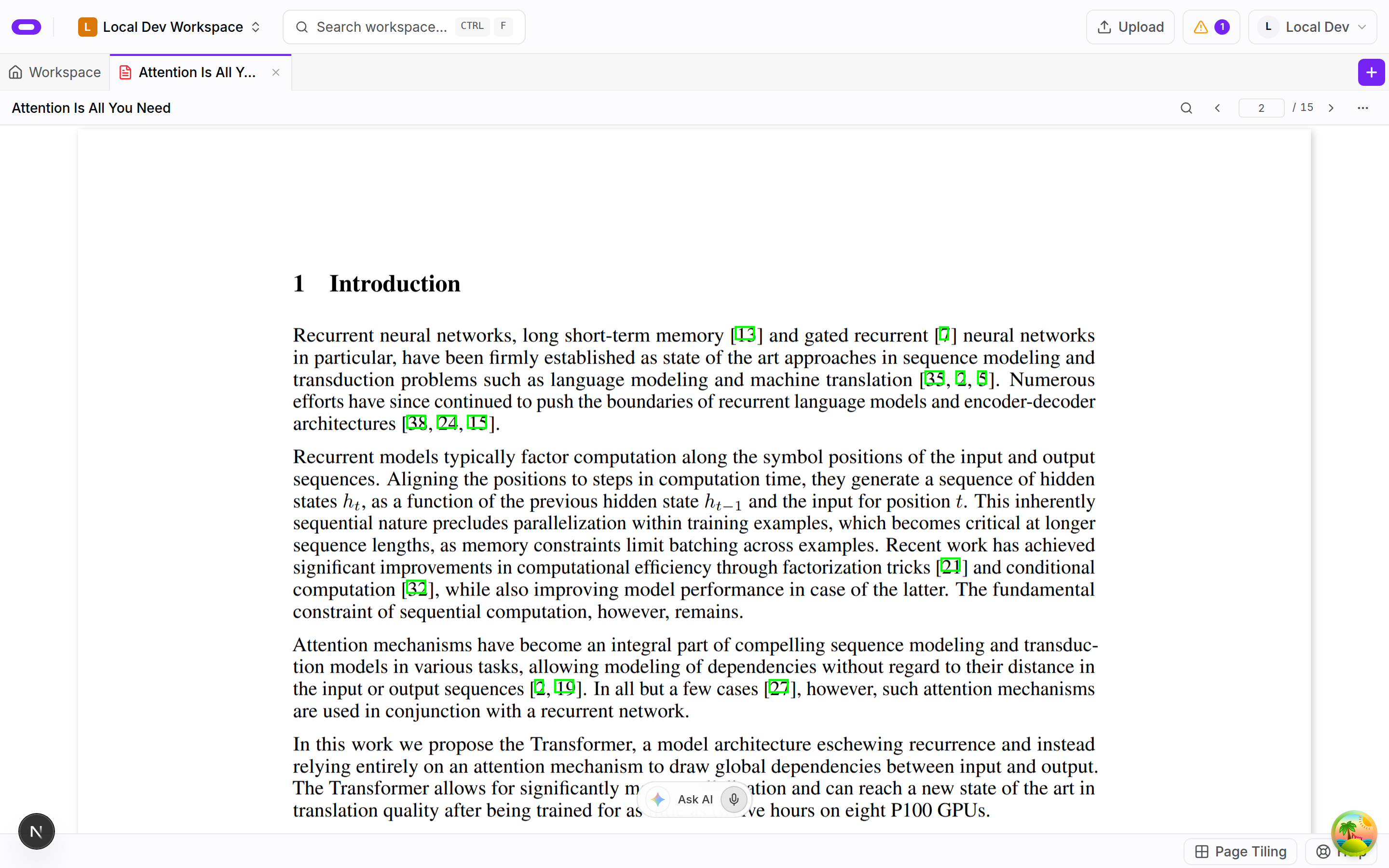
This shows the PDF viewer only. No screenshot for this step yet: uploading and viewing an actual scanned source.
2. Choose the conversion and page range
Open the PDF file's menu and choose Convert to note (OCR). Select the pages you want in the confirmation dialog. The page-range field accepts comma-separated pages and ranges, for example 1-3, 5. Start with the pages you actually need.
No screenshot for this step yet.
3. Check the cost and confirm
Read the selected-page count, credit cost and remaining balance shown in the dialog. If the balance is insufficient, do not assume the scan can proceed. When the selection and cost are right, choose Convert to note and wait for the conversion to finish. If it reports an error, resolve it before treating the note as complete.
No screenshot for this step yet.
4. Review and edit the note
Open the resulting note and compare it with the original pages. Check names, numbers and any symbols you plan to reuse. Correct mistakes and add a short sentence of your own so you can verify the note is editable. Check formulas and table entries individually; no accuracy guarantee follows from this walkthrough.
No screenshot for this step yet.
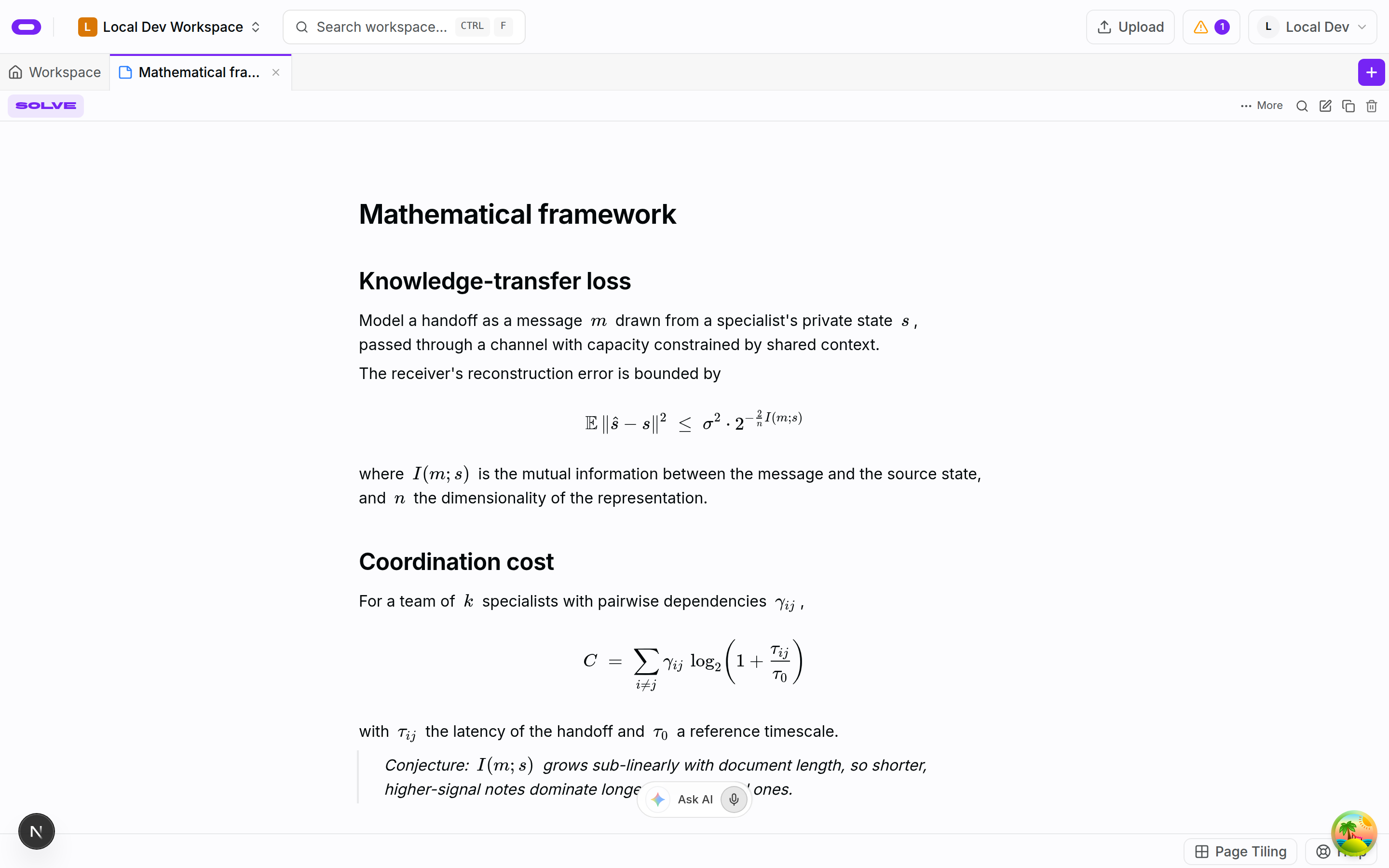
This is the note view, not a finished OCR result. The sample note was seeded independently of the PDF.
5. Reopen and check your work
Leave the note, open it again from the file list, and check that your correction remains. Keep the original PDF alongside it. Your first outcome is complete when you have a reviewed, editable note for the selected pages, with the source available for comparison.
No screenshot for this step yet.
Continue with a note and a board task, or read about PDF OCR to Markdown notes.