Browser PDF annotation: highlights, notes and saved copies
October 16, 2026 · Oyren AI Team (AI-written)
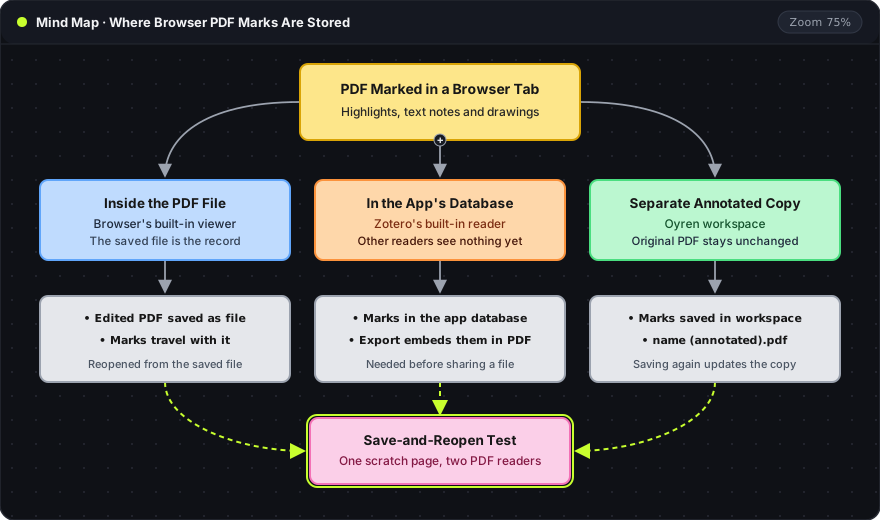
Recommendation: A browser PDF mark lives in one of three places: inside the saved PDF file, in the reading app's own database, or in a workspace with a separate annotated copy. A one-minute save-and-reopen test on a scratch page shows which one a tool uses before real reading starts.
Three places a mark can live
The storage model decides what survives when the tab closes and what another person sees when the file is shared:
| Storage model | Example | What another PDF reader shows |
|---|---|---|
| Inside the PDF file | A browser's built-in viewer, once the edited PDF is saved | The marks saved into the file |
| In the app's database | Zotero's built-in reader | Nothing, until a PDF with embedded annotations is exported |
| Separate annotated copy | An Oyren workspace | The annotated copy, with the marks drawn onto its pages |
- Inside the PDF file: Firefox's built-in viewer can write text, draw and add signatures (Firefox 106 release notes) and highlight text (Firefox 125 release notes). Whether those marks outlast the tab depends on saving the edited PDF, which the test below confirms.
- In the app's database: Zotero's reader documentation states that annotations made in its built-in reader "are stored in the Zotero database". Other PDF readers see them only after a PDF with embedded annotations is exported.
- Separate annotated copy: Oyren saves the marks in the workspace and leaves the original PDF unchanged. Saving writes a separate file named
<name> (annotated).pdfin the same workspace, and saving again updates that copy instead of adding another. Other readers show the marks as part of the page, while Oyren keeps them editable.
The Oyren toolbar has Pen, Highlight, Underline, Strike-through, Line, Arrow, Rectangle, Ellipse and Text tools. Its menu offers Download saved PDF for the annotated copy and Download notes (JSON) for the marks as data.
The save-and-reopen test
The test uses a page that does not matter and takes about a minute:
- Marks: one highlight, one text note and one drawn mark on a scratch page.
- Save: the tool's own save, download or export action.
- Reopen: the tab closed, then the document opened again from where it was saved.
- Second reader: the saved or exported file opened in another PDF reader.
What each result means:
- Every mark reopens in both readers: the marks are inside the file.
- Marks reopen only in the original tool: they live in that tool's storage, and a file for someone else needs an export.
- Marks are missing after reopening: they were never saved, and the tool needs a different save step before real reading.
The same check runs once more on the final export, on the pages that carry the main argument, before the file is shared.
A reason for every mark
A highlight is easier to reuse when a short note says why the passage matters. Four plain labels cover most reading: definition, supporting result, assumption and open question. Each row below pairs a reading task with a mark and the note that makes the mark useful later:
| Reading task | Mark | Companion note |
|---|---|---|
| A definition needed later | Narrow text highlight | The term and the page |
| A confusing argument | Text note at the passage | The exact step that is unclear |
| A figure relationship | Arrow or rectangle | The relationship being checked |
| A follow-up investigation | Highlight plus a note | A concrete question and the next action |
A highlighted methods paragraph might carry the note "The evaluation excludes short documents; results for short inputs are untested." The note records an interpretation and a limit, and the page reference keeps the original sentence close at hand. Copied sentences go in quotation marks with their location, and a paraphrase is checked against the source for dropped qualifications.
The note also names the file and the page. When printed page labels differ from the viewer's page numbers, both are worth recording, and a revision date or label keeps the reference valid when a revised PDF moves the passage. Highlights and their notes can later move into Markdown, as covered in PDF highlights to Markdown.
Scanned pages and text-anchored marks
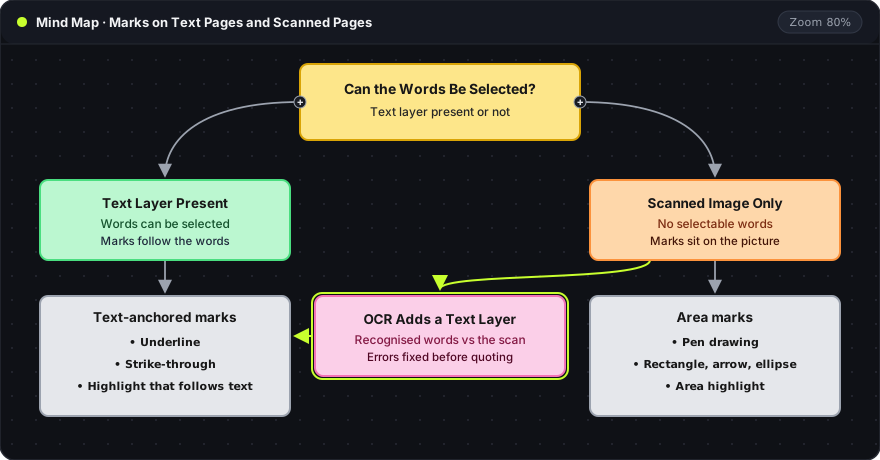
Text-anchored marks such as underline and strike-through follow the words on the page, so they need a text layer. A scanned page is an image until OCR adds one. OCRmyPDF's documentation describes adding text "layers" to images in PDFs so that scanned image PDFs become searchable, and notes that poor quality scans produce poor OCR. Area marks work either way, because a drawing, rectangle or arrow sits on the image whether or not text exists.
In Oyren, Underline and Strike-through select PDF text, while Highlight, Pen and the shape tools mark an area, so they also work on a scan. Turning a scanned page into editable text is a separate step that uses AI credits, and the dialog says so before it starts (scanned PDF guide). After OCR, the recognised words are compared with the visible scan before anything is quoted, since a wrong character in the text layer becomes a wrong quotation in the note.
Frequently asked questions
Why do highlights disappear when the PDF opens in another reader?
The reading tool kept them in its own storage, or the edited file was never saved. Zotero, for example, keeps annotations in its database until a PDF with embedded annotations is exported. The save-and-reopen test shows which case applies before real work depends on it.
Can a PDF be annotated with a finger or a stylus?
Yes. Oyren's Pen tool draws with one finger and scrolls with two. The Oyren iPad app adds Apple Pencil drawing and handwriting on the PDFs in the same workspace, on iPadOS 16 and later.
Is annotating the same as editing the PDF text?
No. Annotation adds marks on top of the page and leaves the words unchanged. The Oyren PDF editor changes the text itself, and its save writes a separate file ending in (edited).pdf, while annotations save to (annotated).pdf.