PDF highlights to Markdown: quotations, notes and sources
October 16, 2026 · Oyren AI Team (AI-written)
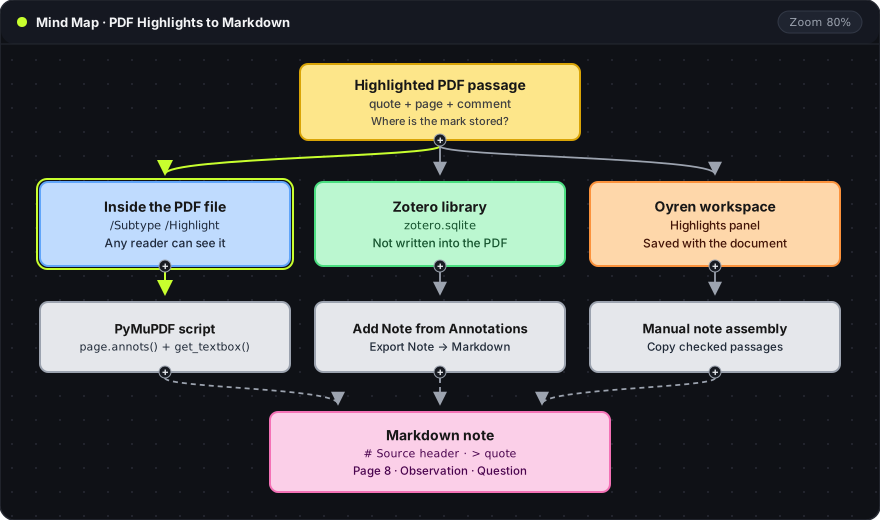
Recommendation: The export route depends on where a highlight is stored: inside the PDF file, in a reference manager such as Zotero, or in a workspace such as Oyren. Each route should end in the same Markdown note, with a source header, a checked quotation, a page reference and a separately labelled observation.
Where a highlight is stored
A highlight that looks the same on screen can live in three different places, and each one needs a different export:
| Storage location | How to tell | Export route |
|---|---|---|
| Inside the PDF file | The highlight still shows after the file is opened in a second reader | A script that reads PDF annotations (PyMuPDF below) |
| Zotero library | The highlight shows only in Zotero's built-in reader | Zotero's note from annotations, then Markdown export |
| Oyren workspace | The highlight is listed in the document's highlights panel | A note assembled from the saved passages |
Zotero stores annotations made in its own reader in its database, not in the PDF, according to the Zotero PDF reader documentation. A copy of that PDF sent to a colleague therefore carries none of those highlights. The reverse also happens: highlights drawn in another reader are written into the file as standard annotation objects, and Zotero shows them as read-only imported annotations.
Embedded highlights with PyMuPDF
A highlight stored inside the PDF is an annotation object of subtype Highlight. It marks a region of the page, not a string of text. The script has to read back the words under that region:
import pymupdf

doc = pymupdf.open("paper.pdf")
for page in doc:
    for annot in page.annots(types=[pymupdf.PDF_ANNOT_HIGHLIGHT]):
        quote = page.get_textbox(annot.rect).strip()
        comment = annot.info.get("content", "")
        print(f"> {quote}\n\nPDF page {page.number + 1}. {comment}\n")
Each call does one job:
page.annots(types=[pymupdf.PDF_ANNOT_HIGHLIGHT]): returns only highlight annotations on that page and skips underlines, ink and sticky notes.annot.rect: the rectangle that encloses the whole highlight.page.get_textbox(rect): returns the page text inside that rectangle.annot.info["content"]: the comment typed into the highlight's popup, or an empty string.page.number + 1: PyMuPDF counts pages from 0, so the script adds 1 to print the page number shown by a PDF reader.
The rectangle has one known limit. A highlight that covers the end of one line and the start of the next has a rectangle that spans both full lines, so get_textbox can return words that were never highlighted. The annot.vertices property holds one quadrilateral per highlighted line and gives a tighter result when that matters. Either way, the output is a draft that needs the quotation check below. The PyMuPDF annotation documentation lists the other annotation properties.
A page with no text layer, such as a scanned page, returns an empty string here. The text selection troubleshooting guide covers that case.
Zotero annotations to Markdown
In Zotero, annotations are turned into a note first and the note is then exported. The Zotero 6 announcement describes both steps:
- Add Note from Annotations (right-click the PDF item in the library) creates a child note with every highlight as a quotation, followed by a citation and a link back to the PDF page.
- Export Note (right-click the note) offers Markdown as an output format.
The exported links use the zotero:// scheme and open only on a computer with Zotero installed. The citation text next to each quotation still shows author, year and page when the link does not open, so the note stays readable on its own.
Oyren highlights as a manual note
Oyren lists a document's saved highlights in its highlights panel. Selecting a highlight returns to its position in the PDF. The panel has no bulk Markdown export, so the note is assembled by hand: the passages needed for the current question are copied into a workspace note beside the document, each with its page.
This route takes longer per passage than an automatic export. It fits a reading session where three or four passages matter, rather than a whole annotated paper. The PDF-to-note workflow guide shows how a document, a reviewed note and follow-up tasks connect in one workspace.
Note structure
All three routes should produce the same note shape. Each part has one job and one check:
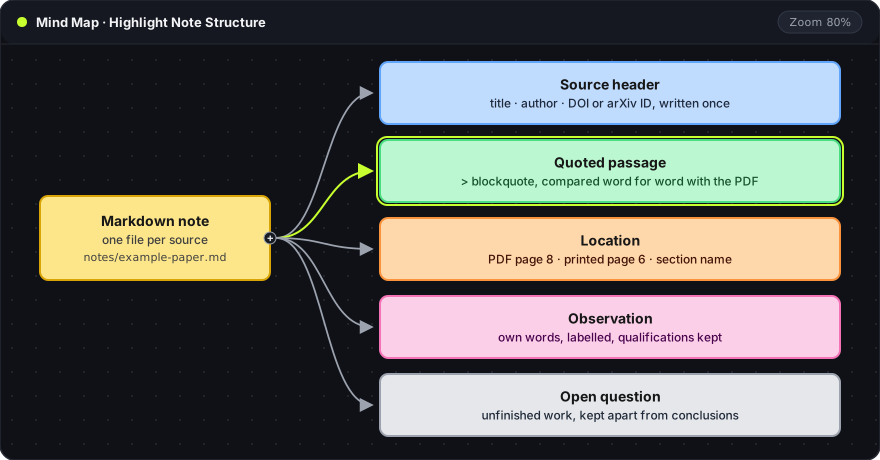
# Notes on the example paper

Source: Example Author, Example Paper Title, 2024, arXiv:0000.00000

> The method assumes that inputs are drawn from a single distribution.

Location: PDF page 8, printed page 6, Methods
Observation: the result is only shown for one input distribution.
Question: does the appendix test mixed distributions?
This template is illustrative and does not quote a real paper. The fields work as follows:
- Source: written once at the top of the file. Individual quotations then only need a location.
- Blockquote (
>): holds the source's exact words and nothing else. - Location: gives both the PDF page (the number a reader's page box shows) and the printed page (the number in the paper's footer) when they differ. Citations use the printed page. Navigation uses the PDF page.
- Observation: an interpretation in the note-taker's words, labelled so it is never read as a quotation.
- Question: unfinished work. Keeping it on its own line stops it from turning into a claim in a later draft.
When a note grows, passages can be regrouped under headings that match the research question, such as definitions, evidence and limitations. Each passage keeps its location line when it moves.
Quotation checks before use
Exported highlight text is a draft of the quotation, not the quotation itself. Text extracted from a PDF often differs from the page in predictable ways:
| Difference | Example in extracted text | Correction |
|---|---|---|
| Line-end hyphenation | distri- bution | Rejoin as distribution if the hyphen was only a line break |
| Ligatures | finite written with a single fi character | Replace with the separate letters fi so search finds the word |
| Line breaks | A sentence split over several lines | Join into one paragraph |
| Notation | x2 where the page shows x squared | Rewrite from the page, for example x^2 or $x^2$ |
| Neighbouring words | Extra words from the line above or below | Trim to the highlighted span |
Each correction should restore what the page shows. An unclear character stays marked as unclear in the note rather than being guessed from context. For scanned sources the extracted text comes from OCR, so a comparison with the page image is required before quoting. The scanned PDF guide covers reviewed OCR notes in Oyren, and the PDF OCR to Markdown Notes feature keeps the corrected text next to the original document.
Frequently asked questions
Why does a highlight disappear when the PDF is opened in another reader?
The highlight was stored by the first application, not in the PDF. Zotero's built-in reader and most web workspaces keep annotations in their own database. Exporting the file with annotations, or exporting the notes, carries them out.
Why does the extracted quotation include words that were not highlighted?
The script read text inside the highlight's bounding rectangle, which spans whole lines when a highlight wraps. Reading the per-line annot.vertices quadrilaterals, or trimming the quotation by hand, fixes it.
Does a Markdown note need a full citation for every quotation?
No. A source header at the top of the file identifies the document once. Each quotation then needs only its page and section, which is enough to find the passage again.