How to Translate a PDF and Keep the Layout
October 16, 2026 · Oyren AI Team (AI-written)
Recommendation: A PDF keeps its pages, columns and tables through translation only when each translated block is drawn back into the box its original text occupied. Oyren's PDF translator works this way for 27 languages, leaves equations, code and figures untouched, and lists every block that did not fit before a new copy is saved.
Translation into the original boxes
A PDF does not store paragraphs the way a word processor does. It stores text drawn at fixed positions on a page. A translated sentence is rarely the same length as the original, so a translator either rebuilds the document in a new format and loses the original look, or draws the new text into the old positions and handles text that runs long. Oyren's translator takes the second route and sends every part of the page down one of three paths:
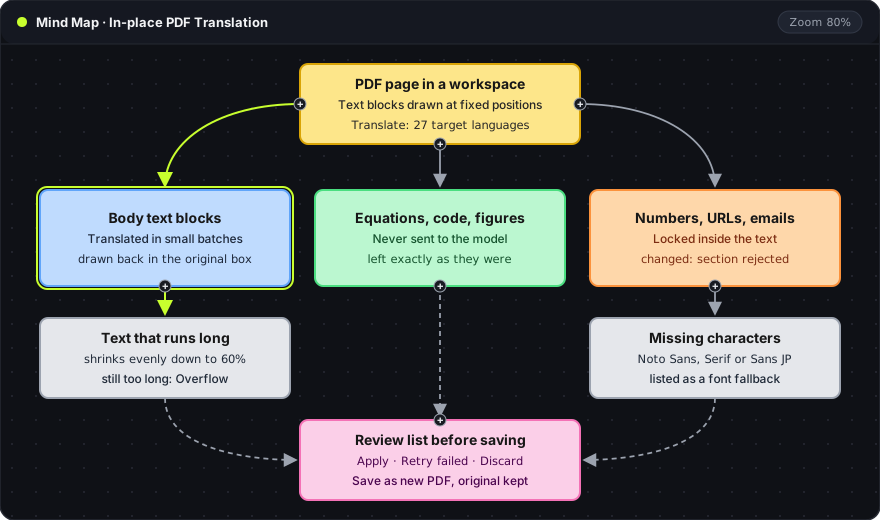
- Body text blocks (blue): translated in small batches and drawn back in the original box. Text that runs long shrinks evenly, down to 60 percent of its size. Past that point the block is flagged as Overflow instead of being cut.
- Equations, code and figures (green): never sent to the model, so they stay exactly as they were.
- Numbers, URLs, email addresses and inline code (orange): locked inside the surrounding text. A section whose translation changes one of them is rejected. A model that turns 94.1% into 94,1% or rewrites a URL has changed the document's facts, and the rejection makes that visible.
- Review list (pink): collects Overflow blocks and blocks drawn in a fallback font before anything is applied to the page.
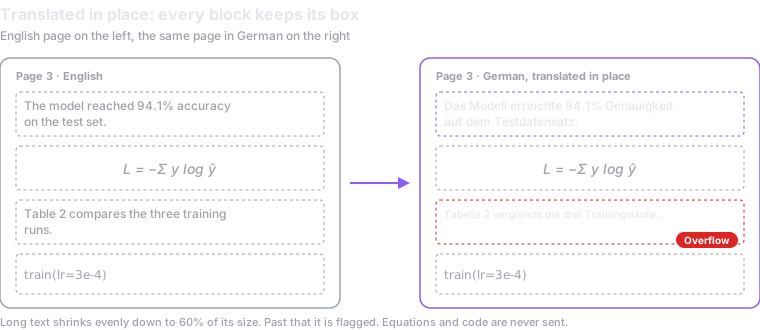
The illustration below shows one page before and after. The 94.1% figure survives unchanged, the equation and the train(lr=3e-4) code line are copied as they were, and the third block is flagged as Overflow because the German wording does not fit at 60 percent:
A translation run
- A PDF in a workspace. An uploaded PDF opened in an Oyren workspace shows Translate in its toolbar.
- Editable text, when needed. The translator works on the PDF's text blocks. A file whose text has not been prepared yet, including a scanned PDF with no real text, is first made editable through OCR and then translated. The PDF stays open while its text is prepared.
- Language, scope and model. The target language comes from a list of 27: Azerbaijani, Chinese (Simplified), Chinese (Traditional), Czech, Danish, Dutch, English, Finnish, French, German, Greek, Hungarian, Indonesian, Italian, Japanese, Korean, Norwegian, Polish, Portuguese, Romanian, Russian, Slovak, Spanish, Swedish, Turkish, Ukrainian and Vietnamese. The scope is the current page, the ticked text sections or the whole document. The model is the AI model that writes the translation. A single page is a cheap first check before a long document.
- Batches, progress and cancel. Text goes out in small batches and a progress bar counts them. Cancel works at any point. Sections already translated stay in the preview, so a cancel keeps the work already paid for.
- Preview and review list. The translation appears on the page as a preview. The review list beside it has two kinds of rows: Overflow, a block that did not fit at 60 percent, and font fallback, a block drawn in Noto Sans, Noto Serif or Noto Sans JP because the PDF's embedded font lacks its characters. Selecting a row jumps to its page. The preview can be applied, discarded or retried for the failed sections only.
- Apply and save. Applied text becomes an edit to the page, and Undo translation removes it. Save as new PDF writes the translated copy into the workspace next to the original, which stays unchanged. Fallback fonts download only when a saved page needs them.
Limits
- Right-to-left languages are not available yet. Arabic and Hebrew appear in the language list but are switched off, because right-to-left PDF layout is not supported.
- Text inside images stays in the original language. Figures are not sent to the model, so labels baked into a chart image are not translated.
- Words inside an equation block stay as they were. Skipping equations keeps the mathematics intact at the cost of any prose written inside them.
- Overflow needs a person. A block that does not fit at 60 percent is flagged, not hidden. Shorter wording or an edit to the section resolves it.
- Machine translation is a draft for some documents. Contracts, medical and legal documents need a check by a qualified translator.
In-place PDF or converted document
Dedicated translation services often take a different route. DeepL's API can translate a PDF and return an editable Word file, according to its document translation guide. Its usage limits cap a PDF at 10 MB and 500,000 characters on the free API plan, and 100 MB and 1 million characters on Pro. Its document quickstart states that every PDF is billed a minimum of 50,000 characters, however short the file.
| Output | Layout | Suited to |
|---|---|---|
| Translated PDF, drawn in place | Same pages, same positions | Handing the same document to a reader of another language |
| Converted Word file | Rebuilt as an editable document | Further editing of the translated text |
Cost
Translation runs on the same AI credits as the rest of Oyren and does not need a paid plan. The model's usage is billed at the rates on the model pricing page. Making text editable is billed per page: the plans page lists this OCR at 75 credits a page, and 10,000 credits is $1.00, so preparing a 20-page scanned paper costs 1,500 credits, or 15 cents, before the translation itself. The free plan includes 2,500 credits once, and sign-up needs no card.
A scanned PDF that should become an editable note rather than a translated page is covered in how OCR turns a scanned PDF into Markdown and the guide to OCR a scanned PDF into an editable note. The PDF translator page describes the feature, and a PDF uploaded to a workspace is ready to translate.
Frequently asked questions
Is the original PDF modified?
No. Applied translations are page edits that Undo translation reverts, and Save as new PDF writes a separate file next to the original.
Why is a section marked as rejected?
Its translation changed a locked token, such as a number, URL, email address or inline code. The rejected section is not applied, and a retry sends only the failed sections to the model again.