PDF to Markdown online without an upload
October 21, 2026 · Oyren AI Team (AI-written)
Most "convert PDF to Markdown online" tools work by uploading the file to a server, converting it there and offering the result for download. A smaller group converts inside the browser tab, so the PDF never leaves the computer. The difference matters for a contract, a medical letter or an unpublished paper, and it can be checked in two minutes with the browser's own developer tools. This post walks through that check, using Oyren's free PDF to Markdown converter as the worked example, and shows what a browser-only conversion cannot do.
Server converters and browser converters
An upload converter sends the PDF to the provider's servers. CloudConvert, which ranks for this search, is a fair example because its privacy policy is specific: uploaded files are deleted after 24 hours at the latest, or immediately with the delete button, processing is done by machine without human access, and servers are in Germany, or in the US for US users. That is a reasonable policy. It is still a copy of the file on someone else's computer for up to a day.
A browser converter loads a PDF library into the page and reads the file from memory. Oyren's converter uses PDF.js, a general-purpose platform for parsing and rendering PDFs, from Mozilla, under Apache 2.0, and hands it the file's bytes directly rather than a URL. The extracted text is assembled in the tab and offered as a .md download.
| Upload converter | Browser converter | |
|---|---|---|
| Where the PDF goes | The provider's servers | Stays in the browser tab |
| Retention to check | The provider's deletion policy | Nothing stored remotely |
| Typical strengths | OCR, layout analysis, large files | Privacy, speed on small text PDFs |
| Typical limits | Upload size, queue time | Browser memory, text layer only |
Checking for an upload in the browser
A privacy claim on a web page is a claim. The network log is evidence. In Chrome, DevTools opens with F12 or Control+Shift+I, or Command+Option+I on a Mac, and the Network tab lists every request the page makes. The Network reference documents a method: filter, so typing method:POST in the filter box shows only requests that send data, and the Payload tab on a request shows what it sent.
The check takes four steps:
- Open the converter page and the Network tab, then clear the log.
- Choose the PDF and run the conversion.
- Filter by
method:POSTand note each request's destination, size and payload. - Add up the request bodies and compare the total with the size of the PDF.
A converter that uploads usually shows an obvious request roughly the size of the PDF, often to an /upload or storage URL. Size alone is not proof, because a page could compress a file or split it across several requests. The total of all bodies, where each request goes and what its payload contains together make a much stronger signal than any one number.
A test run with a small PDF
For this post, a one-page test PDF was made: soil-moisture-field-notes.pdf, 37,417 bytes, with a heading, a three-row table, a formula with subscripts and a bullet list. On 21 October 2026 it was converted on oyren.ai with a scripted Chromium browser that recorded every request the page made after the file was chosen.
After the file was chosen, the page made 14 requests. Only two had a body at all: a feature-flag call of 393 bytes to Oyren's own analytics endpoint and an advertising pixel call of 447 bytes, 840 bytes in total against the file's 37,417. Every request body and every request URL was then searched for words from the PDF and for the %PDF signature that starts every PDF file, in plain and base64 form, and none matched. The PDF.js worker script was downloaded, and the conversion finished in the tab. This is strong evidence for this file and this page on this date, not a proof about every possible file. The page's own note under the result makes the same claim: it does not upload or transfer the file.
What a browser-only conversion keeps and loses
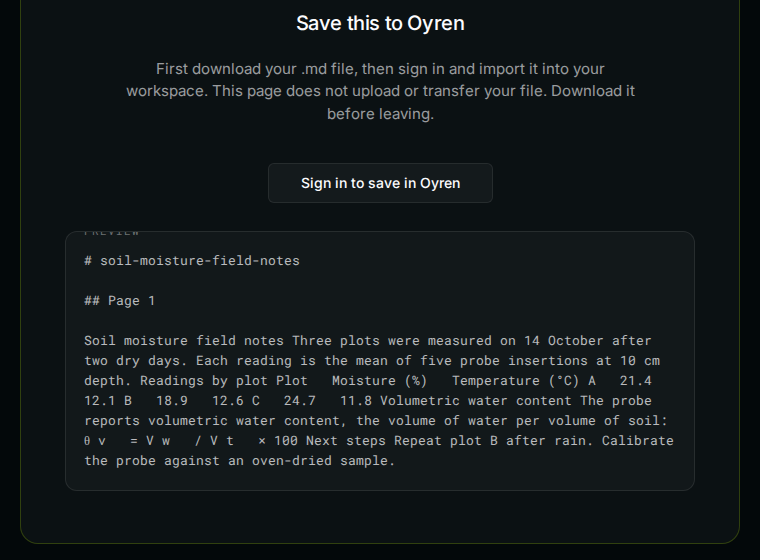
The converter preview at the top of this post also shows the limit. A PDF stores positioned characters, not document structure. Reading its text layer in order returns the words, but not what they meant on the page:
- Headings arrive as plain text inside the paragraph. The output has a title line and a
## Page 1heading, and nothing else. - The table lost its grid. "Plot Moisture (%) Temperature (°C) A 21.4 12.1" is all there, but the rows and columns are gone.
- The formula came out as "θ v = V w / V t × 100". The subscripts became separate letters, which changes how the expression reads.
- The list merged into the paragraph.
Oyren's converter states these limits on its own page: formulas arrive out of order, tables lose their grid, images and charts are skipped, and a scanned page produces nothing because it has no text layer. The tool also caps input at 10 MiB and 50 pages, and output at 1 MiB, because the work happens in the browser's memory.
For a PDF that is mostly prose, such as an article, a report or meeting notes, that output is a clean starting point. For a table that has to stay a table, or an equation that has to stay correct, it is not.
When the file needs OCR
Formulas, tables and scans need a converter that looks at the page as an image and rebuilds the structure. That is OCR with layout analysis. It runs either locally, with open source tools such as Docling or Marker that need a Python setup and, for the heavier models, a capable machine, or on a hosted service, where the retention policy becomes the question. The converters comparison covers both kinds. Oyren's OCR runs in a signed-in workspace and is billed per page in credits, including on the Free plan, with the cost shown before the conversion starts. The converter page lists what it adds: formulas as editable LaTeX, tables as Markdown grids and scanned pages read like any other. The result is a note to compare against the original pages, not a guaranteed transcript. The scanned PDF to editable note guide walks through that path, and the PDF to Markdown for LLMs post covers how to check a conversion before feeding it to a model.
A short decision rule
- A text PDF with private content: a browser converter, checked once in the Network tab.
- A scanned PDF, or one where tables and formulas matter: an OCR converter, after reading its retention policy.
- A large batch: a local tool on the same machine, so nothing leaves at all.
The free PDF to Markdown converter needs no account, and the test PDF above is available for anyone who wants to repeat the network check.