Repository work with Codex CLI on a cloud machine.
Codex CLI comes installed in an Oyren Codespace. It works on repository files on the cloud Linux machine. VS Code in the browser provides the file tree and diff view. Authentication uses an OpenAI API key or a personal Codex sign-in.
An app preview on the same machine
Dispatch API’s real terminal shows 70 passing tests beside the review in VS Code.

An OpenAI key or a Codex sign-in
Save an OpenAI API key in Settings and select it in the launch form's Sign-in section, or select a connected account for Codex. The terminal option allows sign-in inside the Codespace after launch. Authentication is separate from the machine size and runtime selected on the Server step.
# In the VS Code terminal after launch
codex
Oyren credits do not cover Codex CLI model usage. It uses an OpenAI API key or a personal Codex sign-in. Codespace runtime is billed separately.
From repository selection to the first Codex task
- 1
Open a repository with Codespaces
Choose Codespaces in a workspace, then select the GitHub repository to work on. Skip repository selection to start in an empty folder.
- 2
Choose Codex CLI and authentication
Select Codex CLI on the Agent step. Choose a saved OpenAI key, a connected account, or sign-in inside the Codespace.
- 3
Launch and review changes
Choose the machine and runtime, then launch. Run codex in the VS Code terminal. Review changed files and diffs in the editor before pushing a branch.
The machine around Codex CLI
A dedicated Linux machine
Full Linux with sudo supports installing the build dependencies.
VS Code in the browser
Editor, file tree and terminal in one tab, on any device.
A terminal next to the agent
The agent and development server run in separate terminals.
A public URL
Every codespace has a public URL that routes a port for app access from any device.
Billed by the hour while it runs
Runtime is billed by the hour. Stopping the machine stops runtime billing.
Snapshots to pause and resume
Snapshots preserve the machine's state for later use and are billed monthly in credits.
Questions about Codex CLI on Oyren
- Do I need an OpenAI API key for Codex CLI?
- Codex CLI supports an OpenAI API key or a personal Codex sign-in. Saved keys and connected accounts can be selected at launch. Terminal sign-in is available inside the Codespace. Oyren credits cover runtime separately and do not cover Codex model usage.
- Where does Codex CLI work on the repository?
- The repository is cloned onto the Codespace's Linux machine. Codex and VS Code work on files there. Repository selection is optional, so a new project can start in the empty /workspace folder instead.
- Can a Codex CLI task start with a first prompt?
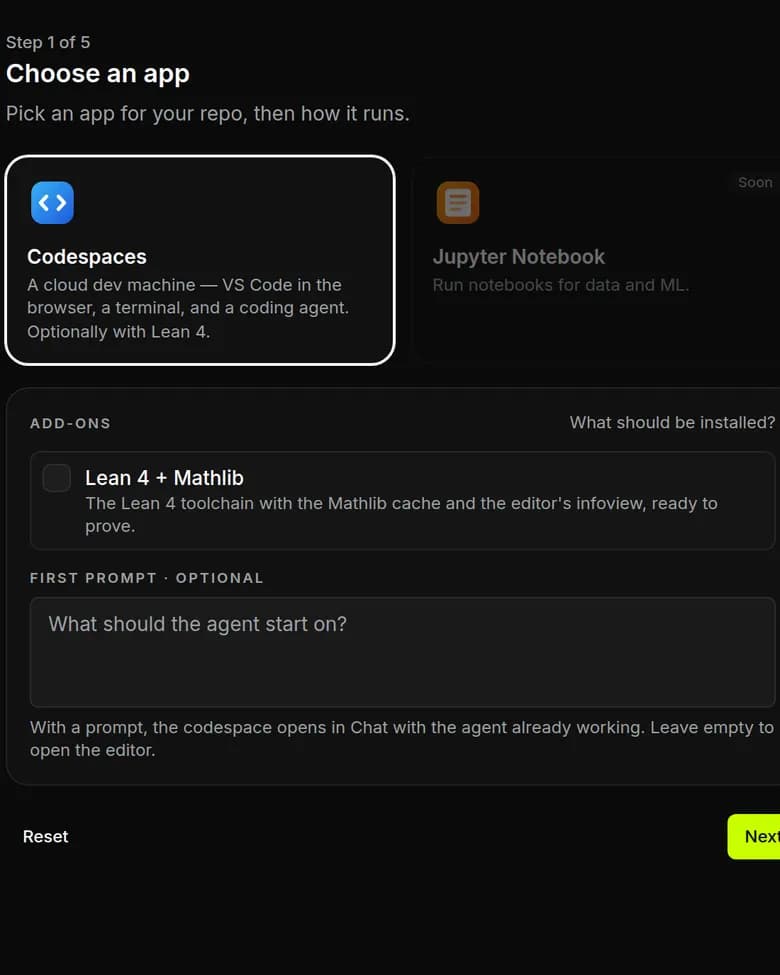
- Yes. The Codespaces app step has an optional first prompt. With authentication connected, a prompt opens the chat view with the task handed to the selected agent. Leaving it empty opens the editor, where Codex is available in the terminal.
- Does a Codex app preview stay online after stopping?
- The app's public URL needs its Codespace to be running. Closing the browser tab does not stop the machine. Runtime is charged in whole hours; stop the Codespace when the session is finished. Snapshot storage is billed separately if a snapshot is saved.
Codespace runtime and Codex CLI usage
Paid plans include monthly credits. Codespace runtime is charged in whole hours. Codex CLI model usage uses an external OpenAI key or sign-in and is billed separately.
View paid plans